
Vibe-coding a markdown conversion tool
14 Oct 2026
Using LLMs to build a document conversion tool

Passkeys have been around for a while now, and are getting increasing coverage as a genuine step forward in account security and convenience. Plus many people are likely already using them, as lots of online services such as Amazon are prompting users to set one up when they re-authenticate. In fact, they’re well enough established to be recommended as the best option for authentication by the UK NCSC.
Passkeys enable the user’s device (phone or computer) to function as an authenticator, making use of the hardware security chip present in modern devices to protect the stored login credentials. After setting up a passkey, the device is trusted by the remote service. When using the Passkey, the user authenticates instead to the local device (using biometrics or the device PIN1), and as the device is trusted that logs them into the remote service.
Crucially, as you’re logging into the local device on behalf of the remote service when using a Passkey, logging in is the same for all your Passkeys on that device. That means no there are no unique password required per service2. Passkeys are equivalent in security to a password and second factor (MFA), but are more convenient for users as they work in a single step. Plus they have another key security advantage: they are phishing-resistant. For example, a Microsoft 365 passkey only works on Microsoft’s login page login.microsoftonline.com, and not a dodgy fake M365 login page that’s come from a phishing link.
It’s worth flagging that Passkeys do have some drawbacks - the main one is that they are normally tied to a specific device. Whilst this needs a backup in personal use3, in an organisational setting it’s less of an issue, as an administrator can handle an MFA reset to allow the user to register another passkey.
Whilst they do take some additional configuration, Passkeys can do away with passwords; it’s now possible to onboard users to Microsoft 365, with both fully-managed company-owned and partially-managed personal devices, without ever having to give out a password.
We’ve recently done this with a 25-person SME, with only some minor hiccups. This blog details how.
Preparing for and deploying Passkeys for lots of M365 users needs detailed configuration and a little testing. But once in place, they can make life easier for users, administrators, and security teams.
As to how they can work in practice, here’s an example process for onboarding a new user in an organisation using Passkeys.
Before they arrive, the local admin completes the following steps:
During this process the device is automatically registered as a Passkey for the user’s Microsoft 365 account, with either Windows Hello for Business or macOS Platform SSO.
Then on their first day, the user:
From now on, the user can complete periodic re-authentication on their laptop using biometrics or their PIN, and similarly with local authentication on their phone using the Passkey in MS Authenticator.
Note that they’ve not been given their M365 password, and don’t need it4. Sure, they need their laptop PIN, so it’s not truly password-less, but it’s still more convenient than the old way of a password and separate MFA.
Doing some prep on the laptop before the user arrives does speed the process along for the user, but clearly will take a little administrator time. A zero-touch approach would also work, where the user can set the laptop PIN themselves as part of their first login (in the Out of Box Experience (OOBE) in device management jargon).
The section below details what needs to be in place across Entra ID and Intune to implement the above approach. If you’re looking to roll out Passkeys, there’s a great tool to, er, help: Passkey Helper, from my old colleague Shane.
First off, you’ll need to enable both Temporary Access Pass and Passkey (FIDO2) for all users in the Entra authentication methods panel:
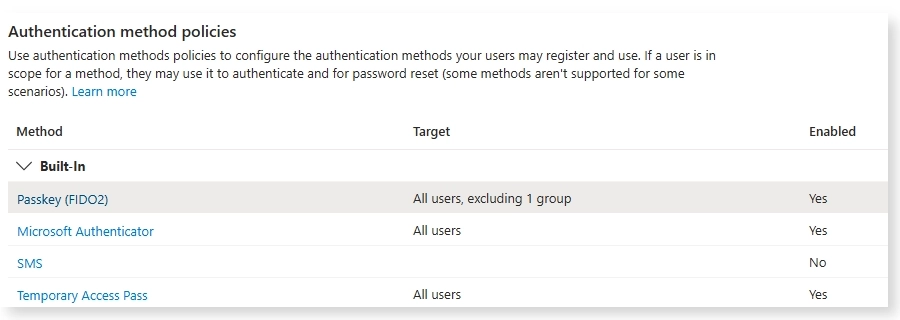
There’s a new approach for Passkeys that requires you to assign configuration profiles to users.
❗ Caution
If you already have Passkeys in use, make sure you don’t render them inoperable by deploying a new profile that doesn’t support the types in use. You need a profile that supports
device-boundpasskeys for Windows Hello for Business, hardware security keys and Microsoft Authenticator, andsyncedpasskeys for Google and Apple’s own synced password managers.
If you’re implementing this approach from scratch, this is the minimum policy set to have in place:
Temporary Access Pass enabled and correctly scoped.Passkey (FIDO2) enabled and correctly scoped.Register security information if you want to control the registration of authentication methods, for example restricting it to managed devices.These steps are all covered in more detail below.
Regardless of the laptop, you can enrol a user onto a device using a Temporary Access Pass, and then use that to do the initial Microsoft 365 login and the configuration of a local PIN.
Windows Hello for Business allows users to sign into Microsoft 365 services and apps just using their Windows laptop PIN, or biometrics if available 5. It needs enabling via a Windows device policy (e.g. in Endpoint security >> Account protection):
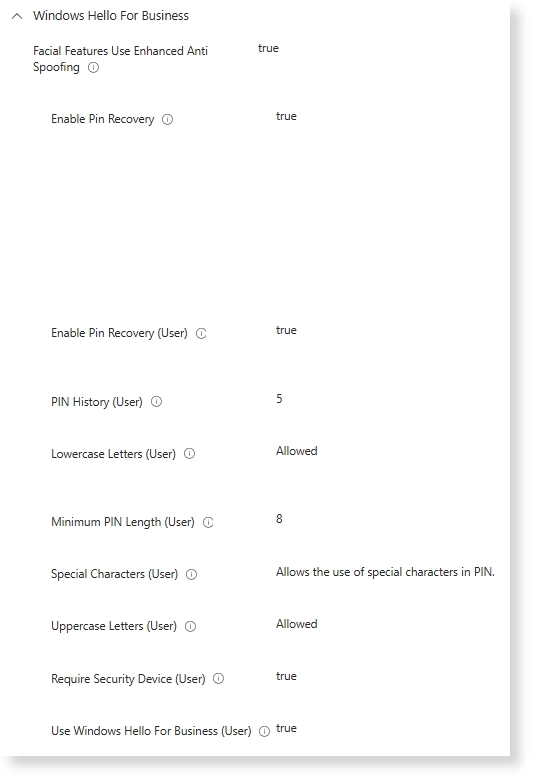
Finally, to help users who forget their laptop PIN you’ll need to configure the Windows Hello for Business PIN reset service. To use it, a user needs to log in to their Microsoft 365 account, so they’ll need a TAP to complete the process if they don’t have Authenticator on their phone.
Platform SSO serves the same function as Windows Hello for Business - it enrols the Mac as a passkey and lets the user sign in once to all Microsoft apps and services, with Touch ID.
The only recent niggle with this was with a MacBook Neo we wanted for a temporary travel device - turns out producing a £500 Mac means scrimping on a fingerprint scanner, which caused an issue for a Platform SSO policy that required biometrics. It’s easily updated, at least, to not mandate Touch ID.
Implementing Passkeys on phones is more complicated because the phone doesn’t have a user account that’s tied to Microsoft 365. Whether it’s for fully-managed and company-owned devices, or for personal devices with just app protection policies, you’ll need to complete the following steps to enforce only approved and work-managed apps in a way that allows Authenticator to still function as a Passkey.
Most organisations won’t allow users to have work data on unmanaged mobile phones, and in the UK most security and compliance frameworks won’t be happy about it. The easiest option is to enforce app protections on key M365 applications such as Outlook, Teams and OneDrive.
First, to enforce protected apps as the only options on mobile, you need a CAP for both iOS and Android.
A CAP needs to target a platform and the application, and enforce app protection.
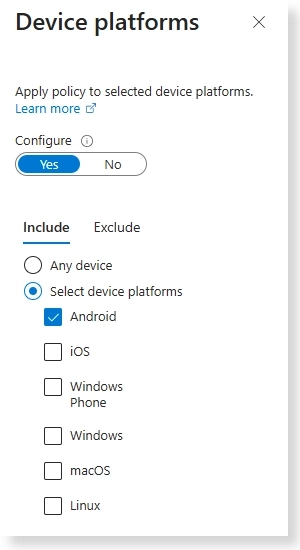
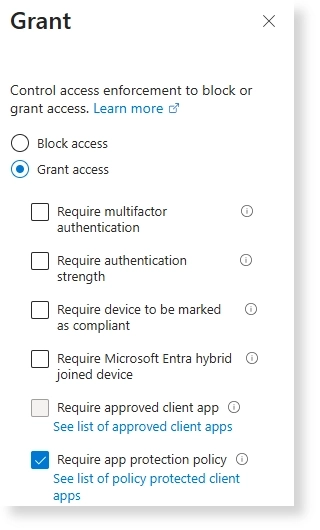
Plus if not covered elsewhere, you’ll want to enforce a session policy to prompt periodic re-authentication.
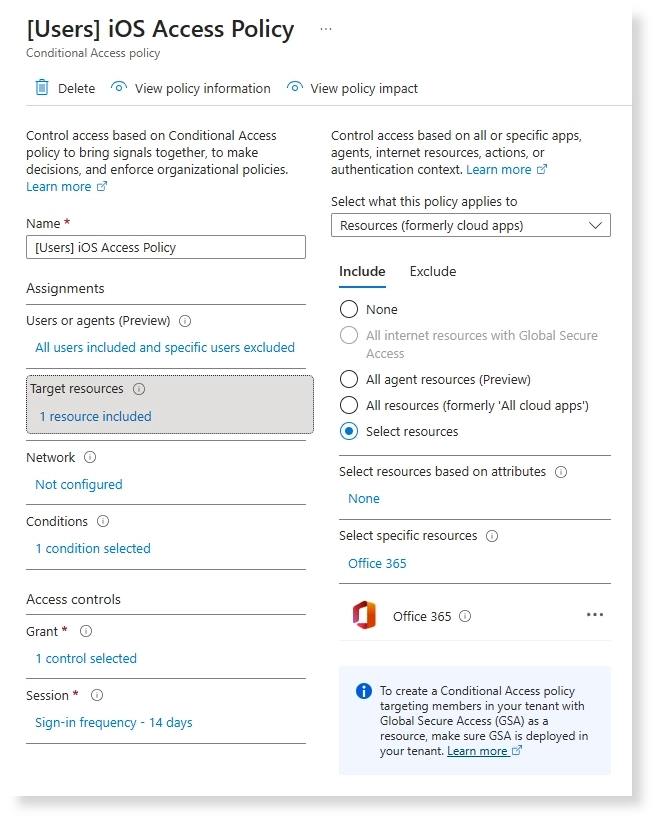
For this mobile app-protection scenario, it’s best to avoid targeting All Cloud Apps in this specific policy. Conditional Access is enforced on target resources, not directly on client apps such as Microsoft Authenticator, and broad scoping here can create unintended registration/sign-in friction. Instead, scope this policy to Office 365 resources (Exchange, SharePoint, Teams) for mobile app access, and use a separate policy on Register security information if you want to control the registration of new authentication methods.
Configuring passkeys does require a range of steps, many of them fiddly. But many of these steps may already be in place in more mature organisations. Of course, testing is key, but once configured it can work smoothly. And when that happens you get a rare win: improved security and and easier process for users.
Making it not truly password-less, of course. But still better, as that local PIN can only be used locally on the device, and doesn’t get an attacker into Microsoft 365 away from the device. ↩︎
Because everyone everywhere has 100% adopted unique passwords per service. ↩︎
Simply, you need a backup form of MFA to use with the password. Or instead use a passkey that can sync to a cloud backup. Either way, there is technically a reduction in the overall security when compared to only having a passkey. ↩︎
Okay, there are some scenarios where they need it, and I came across one recently. A user was added as a guest to another tenant. Logging into that guest account insisted on password and MFA login, presumably because of some complication with cross-tenant access. ↩︎
If there’s a compatible camera for facial recognition, or fingerprint scanner, and the user has enrolled it. ↩︎
Topics

14 Oct 2026
Using LLMs to build a document conversion tool

16 Sep 2026
Why products should never charge more for default security features

16 Aug 2026
A pragmatic list of cybersecurity advice for every home

18 Jun 2026
We all need to channel our inner Johnny Rico and prepare for the next wave of bugs

13 May 2026
Restricting search engine and user access to a staging Hugo site with Cloudflare

06 May 2026
A custom Hugo sitemap that works with a Pages worker